TABLE OF CONTENTS
- 1. What is the Invoices Module
- 2. How Does It Work?
- 3. What Does an Invoice Contain?
- 4. Payment Status - What Do the Labels Mean?
- 5. How to Search and Filter Your Invoices
- 6. What Hana Accounting Does and Does Not Do
- 7. A Closer Look at How Invoices Are Recorded
- 8. A Practical Example
- 9. Key Benefits
1. What is the Invoices Module
The Invoices module is where all your customer sales are recorded for accounting purposes. Whenever you create an order in Hana POS, an invoice is automatically created in Hana Accounting. This means your financial records are always accurate and up to date, without any extra work on your part.
2. How Does It Work?
The simplest way to understand it is this: whatever happens in your POS, Hana Accounting knows about it automatically.
When you create an order in POS, an invoice appears in Hana Accounting. When a customer pays, the payment status updates in Hana Accounting. When an order is cancelled, the invoice reflects that too. You never have to enter the same information twice.
3. What Does an Invoice Contain?
Every invoice in Hana Accounting includes the following details:
Invoice Number: This is the same number as the one in your POS, so you can easily match records between both systems.
Customer Name and Details: Who the sale was made to.
Items Purchased: A full list of what was sold.
Taxes, Discounts, and Delivery Charges: All additional charges are recorded clearly.
Total Amount Payable: The final amount the customer owes or has paid.
4. Payment Status - What Do the Labels Mean?
Each invoice will show one of three payment statuses:
Paid: The customer has completed their payment.
Pending: The payment has not been received yet.
Cancelled: The order or invoice was cancelled in POS.
These statuses update automatically based on what happens in your POS. You do not need to change them manually.
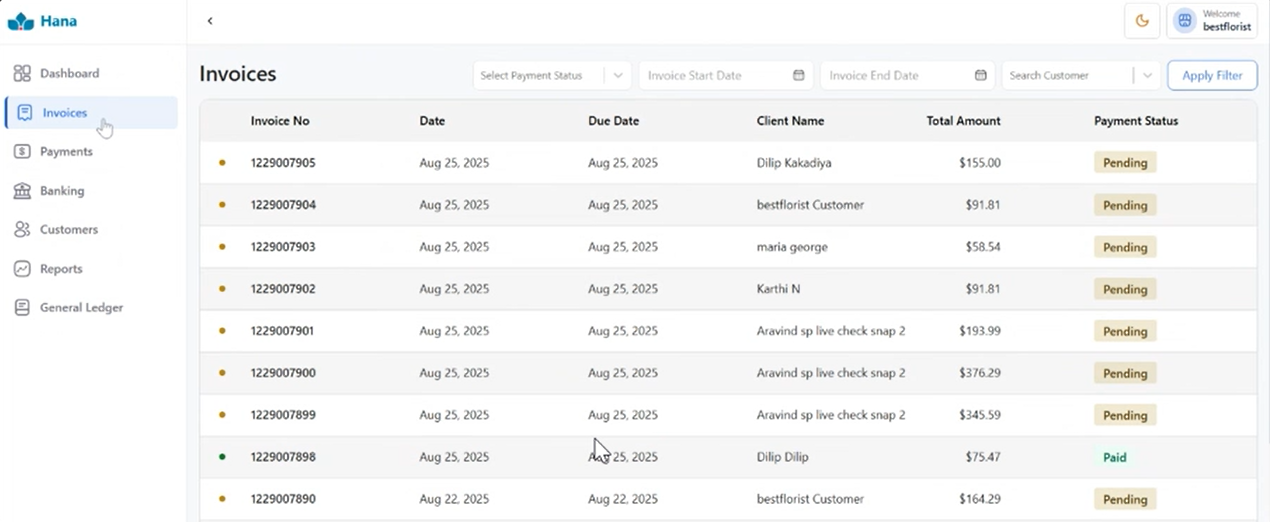
5. How to Search and Filter Your Invoices
At the top of the Invoices page, you will find filters to help you find specific invoices quickly:
Payment Status: Show only Paid, Pending, or Cancelled invoices.
Start Date and End Date: View invoices within a specific date range, for example all invoices from last month.
Search Customer: Type a customer's name to find their invoices.
Apply Filter: Click this button after selecting your filters to run the search.
6. What Hana Accounting Does and Does Not Do
Hana Accounting is a recording tool, not an operations tool. Here is a simple breakdown:
What it DOES: Receives information from POS and organizes it for your financial records and reports.
What it does NOT do: Create invoices or collect payments. All of that still happens in your POS as usual.
A simple way to think about it: POS is where you run your shop. Hana Accounting is where your finances are kept in order.
7. A Closer Look at How Invoices Are Recorded
When an invoice syncs from POS to Hana Accounting, the following rules are applied automatically. You do not need to manage any of this yourself.
Item Account: Every item sold is recorded under a Sales account by default.
Tax Account: Each tax is recorded in its own account automatically. For example, if your state charges a Sales Tax, it will have its own account created automatically based on the tax name.
Wire-In Invoices: Orders sent to your shop by another florist through a wire service like FTD or Teleflora.
What gets recorded: An outstanding Wire-In balance is shown until the wire service settles the payment with you.
What does not get recorded: No payment information is sent, since the payment is handled on the other florist's end.
Wire-Out Invoices: Orders where your shop fulfills a request by sending it to another florist through a wire service.
What gets recorded: A full invoice for the order, plus a credit memo for 80% of the wire amount.
What is a credit memo: It is a record showing the wire service's cut of the sale being logged as an expense, under accounts like FTD Wireout Expense or Teleflora Wireout Expense.
Cancelled Invoices: Any payments made are refunded first. Once the refund is done, the invoice is marked as cancelled.
8. A Practical Example
Sarah runs a flower shop and sells a bouquet to a customer named John. She creates the order in POS. Hana Accounting automatically generates the following invoice:
Invoice Number: POS1234
Customer: John
Items: Bouquet - $200
Delivery Fee: $10
Tax (5%): $10.50
Total Amount: $220.50
John pays immediately. POS marks it as Paid, and Hana Accounting updates automatically to show Paid as well. Sarah does not have to do anything extra.
If John had not paid yet, the invoice would show as Pending until the payment comes through..
9. Key Benefits
No Double Work: Information flows automatically from POS to Hana Accounting. You never have to enter the same details twice.
Always in Sync: Whatever happens in POS is reflected in Hana Accounting, so your records are never out of date.
Everything in One Place: All your invoices, across all customers and dates, are stored and searchable in one module.
Financial Transparency: You can clearly see what has been sold, what has been billed, and what has been collected.
Tax Compliance: Clean and complete invoice records make it much easier to prepare for tax season, whether you do it yourself or work with an accountant.
Was this article helpful?
That’s Great!
Thank you for your feedback
Sorry! We couldn't be helpful
Thank you for your feedback
Feedback sent
We appreciate your effort and will try to fix the article