TABLE OF CONTENTS
- 1. What is the Banking Module?
- 2. How Does It Work?
- 3. Connecting or Uploading Your Bank Data
- 4. Reviewing and Categorizing Your Transactions
- 5. Handling Special Cases
- 6. A Practical Example
- 7. Security Note
- 8. Bookkeeping Support
- 9. Why It Matters
1. What is the Banking Module?
The Banking module is where you bring in your bank and card transactions to keep your financial records complete. It covers:
Money Coming In: Deposits, sales payments, and any other incoming amounts.
Money Going Out: Withdrawals, fees, expenses, and other outgoing amounts.
Once your bank data is in, Hana Accounting helps you match those transactions to your sales and invoices. Think of it as keeping your bank records and your shop records side by side, so nothing is ever missing or out of place.
2. How Does It Work?
The Banking module works in two simple steps:
Bring in your bank data: Connect your bank or upload your bank statement file into Hana Accounting.
Review and match your transactions: Go through each transaction, assign it a category, and match it to the relevant sale or expense.
This matching process is called reconciliation. It simply means confirming that what your bank shows and what your books show are in agreement with each other.
3. Connecting or Uploading Your Bank Data
There are two ways to get your bank transactions into Hana Accounting:
Link Your Account: Connect your bank directly to Hana Accounting. Transactions are pulled in automatically.
Upload a File: Download your bank statement from your bank and upload it into Hana Accounting as an Excel file. This is the more commonly used option as it gives you full control over what you share.
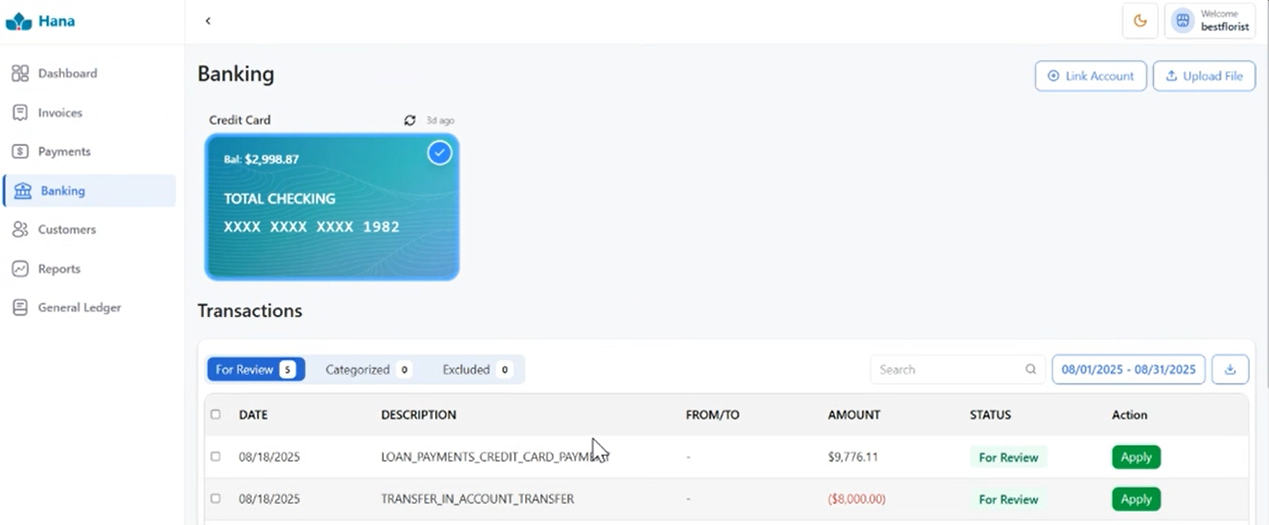
Once your data is in, Hana Accounting lists all your transactions with the date, description, and amount for each entry.
4. Reviewing and Categorizing Your Transactions
Once your transactions are listed, you go through each one and do the following:
Categorize it: Assign a category to each transaction so your books know what the money was for. Common categories include Sales Deposit, Rent, Utilities, Bank Fees, Payroll, Wire Out, and Gift Card Liability, among others.
Match it to POS or an Invoice: For deposits that come from sales, Hana Accounting will try to match the bank deposit to the corresponding payments or invoices in POS. When a match is confirmed, you mark it as Reconciled, which means the entry is verified and accounted for.
5. Handling Special Cases
Not every bank transaction is straightforward. Here is how to handle the most common situations:
Sale Deposit That Matches POS
What you see in the bank: A deposit of $10,000 from your payment provider.
What you do: Find the matching POS payments that add up to $10,000, match them to the deposit, and mark them as reconciled.
Deposit With Bank Fees Deducted
What you see in the bank: A deposit of $9,700, even though your actual sales were $10,000.
Why the difference: The bank deducted $300 as a fee before sending the deposit to you.
What you do: Split the entry into two parts. Record $10,000 as a Sales Deposit and match it to the POS. Record $300 separately as a Bank Fee expense. Both parts are then marked as Reconciled, and your books show the correct figures.
Rent or Supplier Payment
What you see in the bank: A withdrawal of $2,000 for rent.
What you do: Simply categorize it as Rent Expense. There is no POS entry to match it to, and that is perfectly fine.
Partial Payment
What you see in the bank: A deposit of $1,000, but the invoice total is $2,000.
What you do: Match the $1,000 to the invoice as a partial payment. The invoice will remain open and show $1,000 still outstanding until the rest is received.
Refund or Chargeback
What you see in the bank: A negative amount, meaning money has gone out of your account.
What you do: Categorize it as a Refund or Chargeback and match it to the original sale if possible.
Wire Out and FTD Payments
What you see in the bank: A payment to or from a wire service partner like FTD that does not appear in POS.
What you do: If money went out, categorize it as Wire Out under Expenses. If money came in, categorize it as Wire In under Other Income. Then link it to the correct account in your books.
6. A Practical Example
Your shop sold $12,000 worth of orders in a week. Your payment provider deposits $11,640 into your bank after deducting $360 in fees.
Here is how you handle it in the Banking module:
Upload your bank file. Hana Accounting lists the deposit of $11,640.
Split the entry into $12,000 as a Sales Deposit and $360 as a Bank Fee.
Match the $12,000 to your POS sales and mark it as Reconciled.
Record the $360 as an expense.
Result: Your books correctly show $12,000 in sales, $360 as a bank fee expense, and your bank balance is fully reconciled.
7. Security Note
Hana Accounting does not log into your bank on your behalf. You download your bank statement directly from your bank and upload it into Hana Accounting yourself. This means your bank login details are never shared, and you stay in full control of what you bring into the system.
8. Bookkeeping Support
If you would rather not categorize or reconcile transactions yourself, Hana's bookkeeping team can take care of it for you. They will review all your transactions, assign the correct categories, and match deposits to your POS payments, so your books are always in order without you having to do it yourself.
9. Why It Matters
- Your bank records and your accounting books stay in sync at all times, with no missed deposits or unrecorded expenses.
- Every transaction is categorized, which makes tax season straightforward and stress-free.
- You always have a clear picture of what money came in and what went out, giving you full visibility over your shop's finances.
Was this article helpful?
That’s Great!
Thank you for your feedback
Sorry! We couldn't be helpful
Thank you for your feedback
Feedback sent
We appreciate your effort and will try to fix the article