TABLE OF CONTENTS
- 1. What is the Payments Module?
- 2. How Does It Work?
- 3. Payment Types
- 4. Payments, Refunds, and Other Entries
- 5. How to Search and Filter Payments
- 6. A Practical Example
- 7. Key Benefits
1. What is the Payments Module?
The Payments module is where all money received from customers is recorded. Every time a payment is made in Hana POS, it is automatically sent to Hana Accounting and matched to its invoice. This means your payment records are always complete and accurate, without any extra work on your part.
2. How Does It Work?
When an order is marked as Paid in POS, the payment details are automatically sent to Hana Accounting. Each payment is then linked directly to its corresponding invoice.
For example, once a customer pays for Invoice POS1234, that invoice is automatically updated to show as Paid in Hana Accounting. You do not need to do anything manually.
3. Payment Types
When a customer pays in POS, the payment method they use is recorded and reflected in Hana Accounting as well. The supported payment methods include:
Cash
Credit Card
Store Expense
Gift Card
And other methods available in POS
4. Payments, Refunds, and Other Entries
Hana Accounting does not just record payments. It also syncs the following types of entries automatically:
Payments: Money received from customers.
Refunds: Money returned to customers when an order is cancelled or adjusted.
Write-Offs: Amounts that are recorded as uncollectable. For example, if a customer never pays a small outstanding balance, you decide to clear it from your books.
Donations: Any amounts recorded as donations in POS.
Each of these entries is recorded under the correct payment account based on the method used. The default accounts are:
Undeposited Cash
Undeposited Checks
Undeposited Credit Card
Undeposited POH
These accounts hold the payments until they are deposited and matched against your bank statement during reconciliation. Reconciliation simply means checking that what is recorded in your books matches what actually arrived in your bank account.
5. How to Search and Filter Payments
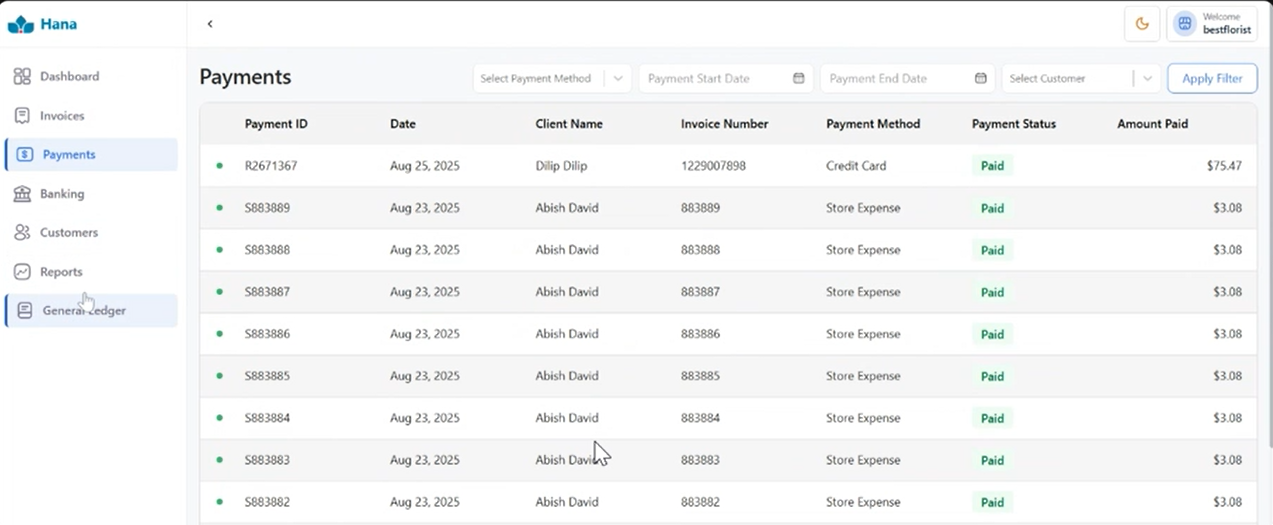
At the top of the Payments page, you will find filters to help you find specific payment records quickly:
Search by Customer Name: Look up all payments made by a specific customer.
Filter by Date Range: View payments within a specific period, such as last week or last month.
Filter by Payment Method: Show only Cash payments, Credit Card payments, and so on.
6. A Practical Example
A customer places an order worth $220.50 and pays by Credit Card in the POS. Hana Accounting automatically creates the following payment entry:
Payment ID: PAY456
Invoice Number: POS1234
Customer Name: Riya Sharma
Payment Method: Credit Card
Amount Paid: $220.50
Payment Status: Paid
No manual entry is needed. Everything is recorded and linked automatically.
7. Key Benefits
No Duplicate Work: Payments flow automatically from POS to Hana Accounting. You never have to enter the same information twice.
Easy Reconciliation: Every invoice has a matching payment entry, making it straightforward to check your records against your bank statements.
Clear Visibility: You can see exactly how much money came in and which payment method was used, all in one place.
Accurate Books: Cash, card, and all other payment types are properly accounted for, keeping your financial records clean and reliable.
Was this article helpful?
That’s Great!
Thank you for your feedback
Sorry! We couldn't be helpful
Thank you for your feedback
Feedback sent
We appreciate your effort and will try to fix the article